



When something breaks, the first question is always "what happened?" The second is "when?"
Until now, answering those questions in Tinybird meant checking multiple places: endpoint request logs, datasource operation logs, Kafka connector logs, sink logs, job logs. Each with its own service data source, its own time range, its own mental model. So to use Playgrounds, Time Series, or Grafana to monitor requiered a lot of knowledge from the end users. If the problem crossed boundaries (a failed ingestion that caused an endpoint to return bad data), you had to piece together the timeline yourself.
Now there's one page: Logs.
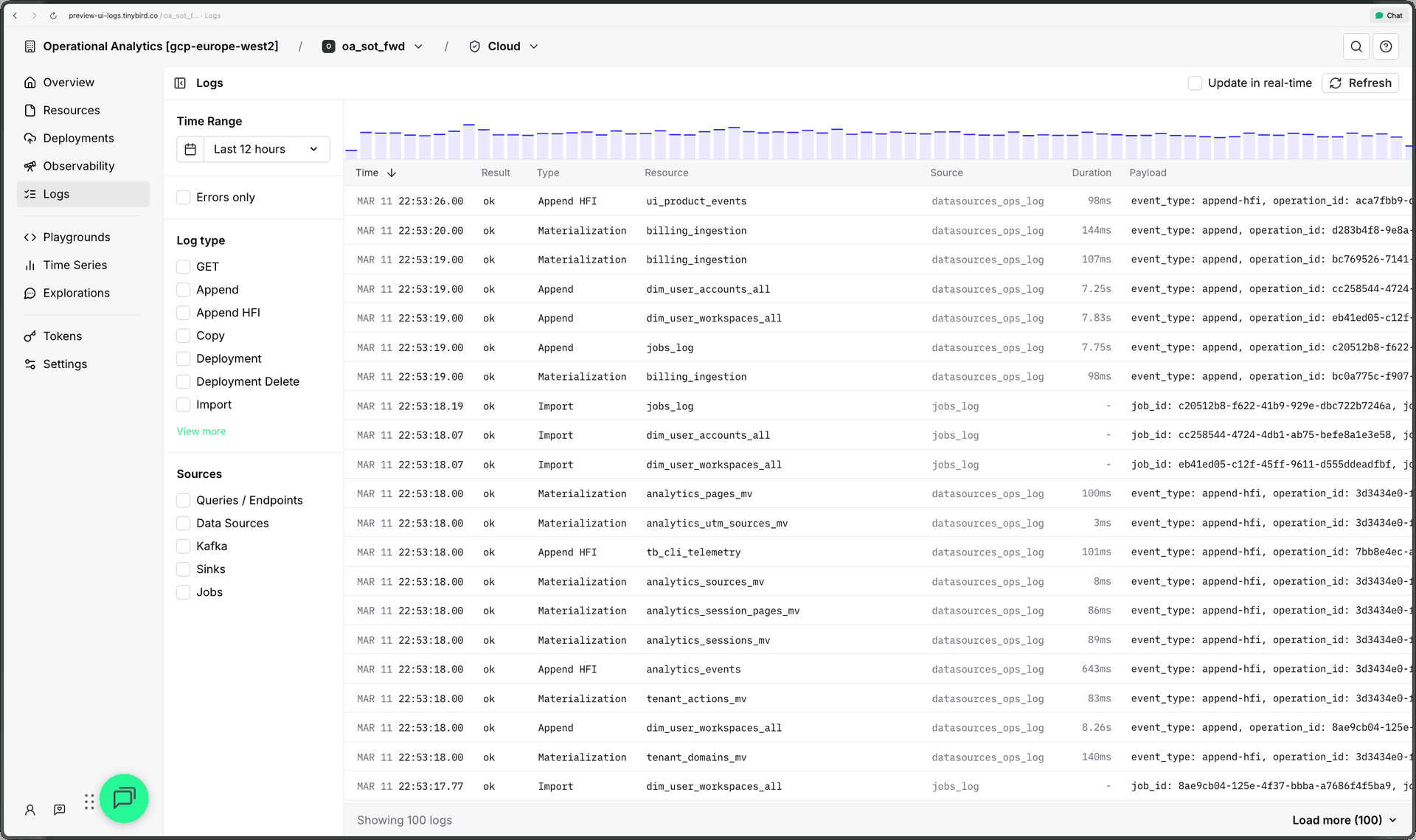
Five sources, one timeline
The Logs page pulls from every operational log in your workspace:
- Queries/Endpoints. Every API request with method, status code, duration, rows read, bytes processed.
- Data Sources. Every ingestion operation: appends, replacements, errors, elapsed time, row counts.
- Kafka. Connector activity: messages processed, committed, lag, errors.
- Sinks. Sink executions with rows read, rows written, elapsed time, errors.
- Jobs. Copy and materialization job runs with status and errors.
All merged into a single table, sorted by timestamp. Each row shows time, status, resource name, and a message summary. Click any row to open a detail panel with the full payload.
Filter down to what matters
The sidebar has structured filters that compose:
Time range. Presets from 15 minutes to 30 days, or pick a custom range. The log volume chart at the top adapts its granularity automatically: 10-second buckets for short ranges, 6-hour buckets for long ones.
Sources. Toggle each source on or off. Investigating a Kafka issue? Uncheck everything else.
Errors only. One checkbox to filter down to failed operations across all sources: HTTP 4xx/5xx for endpoints, error results for datasources and sinks, failed status for jobs, error messages for Kafka.
Status codes. Filter endpoint requests by specific HTTP status: 400, 403, 404, 409, 429, 500. Useful when you're debugging rate limiting (429) separately from bad queries (400).
Search. Free-text filter on resource name or operation type.
All filters persist in the URL. Copy the link, share it with a teammate, bookmark it for a recurring check. Browser back and forward work as expected.
Click through to context
Clicking a resource name in the log table opens the resource detail in a split-screen panel. If the log entry is an endpoint request, you get the endpoint panel with its API URL and metrics. If it's a datasource operation, you get the datasource panel with schema and ingestion status. For other sources, you get a structured detail view with every field from the log entry, formatted for readability: durations in milliseconds, row counts with separators, bytes in human units.
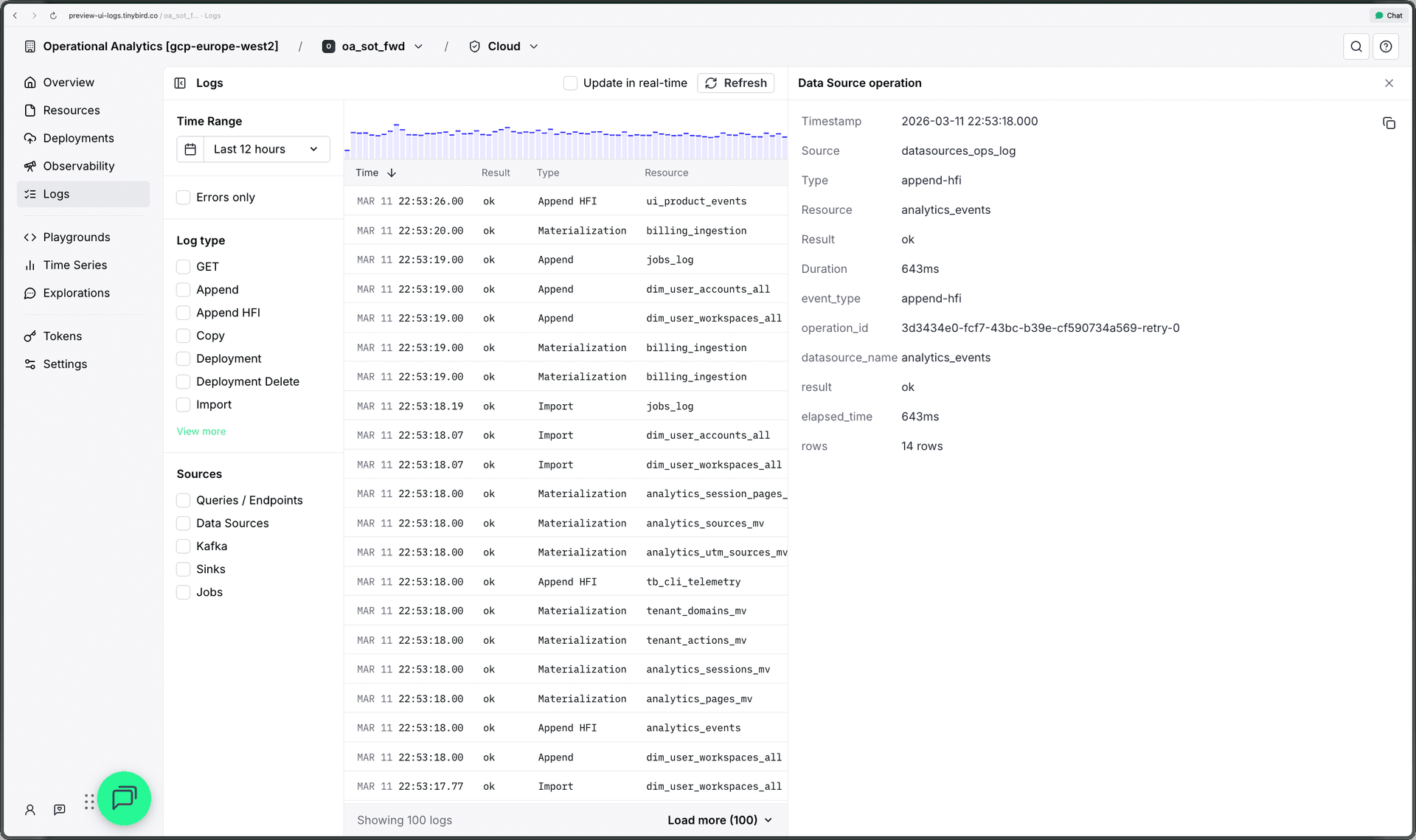
The Overview page links directly here too. The top on Overview shows a "View all errors" link that opens the Logs page pre-filtered to errors=1&range=168 (7 days, errors only). One click from "something is wrong" to "here's every error in the last week."
tb logs in the CLI
The same unified view is available from your terminal. The new tb logs command queries all service datasources in one shot:
$ tb --cloud logs

Running against Tinybird Cloud: Workspace oa_sot_fwd
-------------------------------------------------------------------------------------------------------------------------------------------------------------------------------------------------------------------------------
| Time                | Source                       | Data                                                                                                                                                                   |
-------------------------------------------------------------------------------------------------------------------------------------------------------------------------------------------------------------------------------
| 2026-03-11 23:00:44 | tinybird.jobs_log            | job_id: 06e2606d-d918-455c-ad91-3c99659f7bc9, job_type: import, status: waiting                                                                                        |
| 2026-03-11 23:00:44 | tinybird.datasources_ops_log | event_type: append, datasource_name: landing_ingestion, result: ok, elapsed_time: 5,288.995 ms, rows: 1,944 rows                                                       |
| 2026-03-11 23:00:43 | tinybird.jobs_log            | job_id: 2b9cb9da-d4eb-4e5c-ae81-4c258c304856, job_type: import, status: waiting                                                                                        |
| 2026-03-11 23:00:43 | tinybird.jobs_log            | job_id: f14fda5b-b2d2-4dba-8032-447a55d053ba, job_type: import, status: done                                                                                           |
| 2026-03-11 23:00:32 | tinybird.datasources_ops_log | event_type: append-hfi, datasource_name: analytics_utm_sources_mv, result: ok, elapsed_time: 3 ms, rows: 0 rows, pipe_name: analytics_utm_sources                      |
| 2026-03-11 23:00:32 | tinybird.datasources_ops_log | event_type: append-hfi, datasource_name: tenant_domains_mv, result: ok, elapsed_time: 5 ms, rows: 0 rows, pipe_name: tenant_domains                                    |
| 2026-03-11 23:00:32 | tinybird.datasources_ops_log | event_type: append-hfi, datasource_name: analytics_events, result: ok, elapsed_time: 266 ms, rows: 3 rows                                                              |
| 2026-03-11 23:00:32 | tinybird.datasources_ops_log | event_type: append-hfi, datasource_name: analytics_sources_mv, result: ok, elapsed_time: 9 ms, rows: 0 rows, pipe_name: analytics_sources                              |
| 2026-03-11 23:00:32 | tinybird.datasources_ops_log | event_type: append-hfi, datasource_name: analytics_session_pages_mv, result: ok, elapsed_time: 5 ms, rows: 0 rows, pipe_name: analytics_session_pages                  |
(...)
-------------------------------------------------------------------------------------------------------------------------------------------------------------------------------------------------------------------------------

Fetched 100 logs from 3 source(s) in 0.4s (cloud)
By default it queries the last hour from the three most common sources (pipe_stats_rt, datasources_ops_log, jobs_log). You can change everything:
# Last 30 minutes, errors only from all sources
tb logs --start -30m --source '*' --expand

# Last 7 days of Kafka activity
tb logs --start -7d --source tinybird.kafka_ops_log

# JSON output for piping into jq or scripts
tb logs --start -1d --output json | jq '.data[] | select(.source == "tinybird.pipe_stats_rt")'
The --source flag accepts any of the 9 service datasources (including bi_stats_rt, block_log, endpoint_errors, and llm_usage), or * for all of them. Use --expand to show full field values without truncation, or --verbose to include all fields including timestamps.
The output formats numeric values for readability: durations in milliseconds, row counts with separators, bytes with units. The same formatting you'd get in the UI, but in your terminal.
Why this matters
Real-time data systems fail in real time. An ingestion error at 2am can cascade into bad endpoint responses, failed materializations, and stale sinks by morning. Debugging that chain across five separate log pages, each with its own time range, is slow and error-prone.
One timeline, with composable filters and deep links, makes the difference between a 5-minute investigation and a 30-minute one.


